

在 Unity 中使用 TorchSharp 和 RLMatrix
所以您真的想在 Unity 2025 中使用 TorchSharp?
TorchSharp 的贡献者们可能能比我更好地解释这一点 - 但基本上安装步骤包括下载 libtorch DLL(超过 1GB)并安装/引用它们。
这在较新的 .NET Core 版本中是自动完成的,但由于 Unity 尚未转移到 CoreCLR,我们必须手动完成许多步骤 - 包括 NuGet 安装。 我之前编写过一个关于在 Unity 中有效安装 NuGet 包的指南;这个简短的指南只是通过手动复制 DLL 来扩展它。
- 在 Unity 项目中创建所需的文件夹:
Assets/Plugins/Windows/x86_64- 使用 NuGet 安装 RLMatrix
首先,从 NuGet 网站 下载 nuget.exe 并保存到 C:\nuget.exe。如果您将其保存在其他位置,确保更新下面脚本中的路径。
将以下 PowerShell 脚本保存为 install-rlmatrix.ps1 到您的 Unity 项目的根目录:
$packageName = "RLMatrix"$packageVersion = "0.4.0"$netTarget = "netstandard2.0"$tempDir = ".\Temp"$dllDir = ".\Assets\Plugins"$nugetPath = "C:\nuget.exe"if (!(Test-Path $nugetPath)) { Write-Error "NuGet.exe not found at $nugetPath. Please ensure it's installed there or update the path." exit 1}if (!(Test-Path $tempDir)) { New-Item -ItemType "directory" -Path $tempDir}& $nugetPath install $packageName -Version $packageVersion -OutputDirectory $tempDirif (!(Test-Path $dllDir)) { New-Item -ItemType "directory" -Path $dllDir}Get-ChildItem -Path $tempDir -Directory | ForEach-Object { $packagePath = Join-Path $_.FullName "lib\$netTarget" if (Test-Path $packagePath) { Get-ChildItem -Path $packagePath -Filter "*.dll" | ForEach-Object { $destinationPath = Join-Path $dllDir $_.Name if (!(Test-Path $destinationPath)) { Copy-Item -Path $_.FullName -Destination $destinationPath } } }}Remove-Item $tempDir -Recurse -Force有关此脚本如何工作的更多详细信息,请参阅:https://www.nurupo.io/posts/unityhowtonuget/
- 运行 PowerShell 脚本
可以通过在 Windows 资源管理器中右键点击 .ps1 文件并选择”使用 PowerShell 运行”来完成。
- 获取 TorchSharp 原生 DLL
将所有 TorchSharp DLL 复制到 Assets/Plugins/Windows/x86_64。我是从一个使用 TorchSharp 的 .NET 8.0 项目中复制这些文件的。
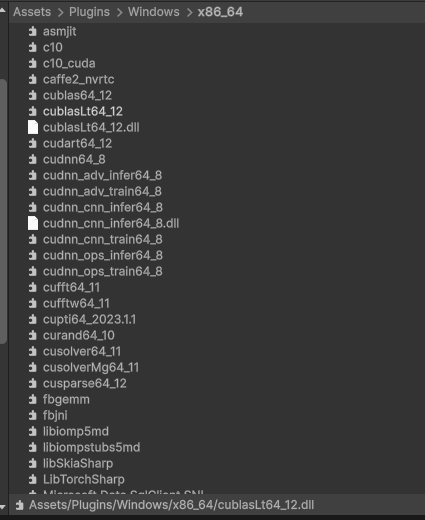
- 在 Unity 中配置 DLL 导入设置
对于 Plugins 文件夹中的每个 DLL:
- 在 Unity 项目面板中选择该 DLL
- 在检视器中,确保设置匹配以下内容:
- 将 Platform 设置为 “Windows”
- 将 CPU 设置为 “x86_64”
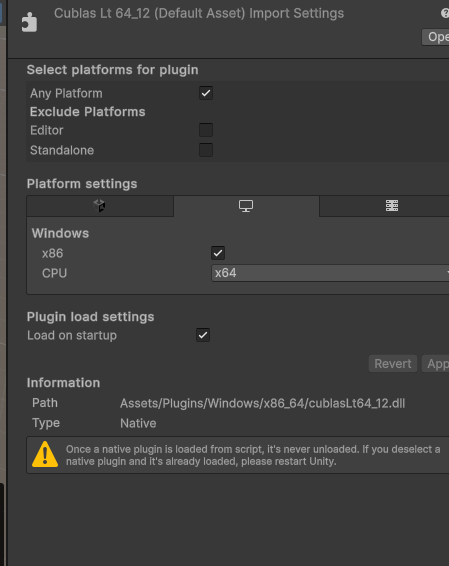
完成,这应该可以工作了!